
 By
Free PDF Editor With No Sign-Up: What Actually Works
Type on a PDF, fill a form, sign it, or rearrange pages for free and without an account. Which tool handles each job, and when you really need a full editor.
Search for a free PDF editor and you'll land on a dozen sites that let you do almost everything, right up until the download button asks you to create an account or start a trial.
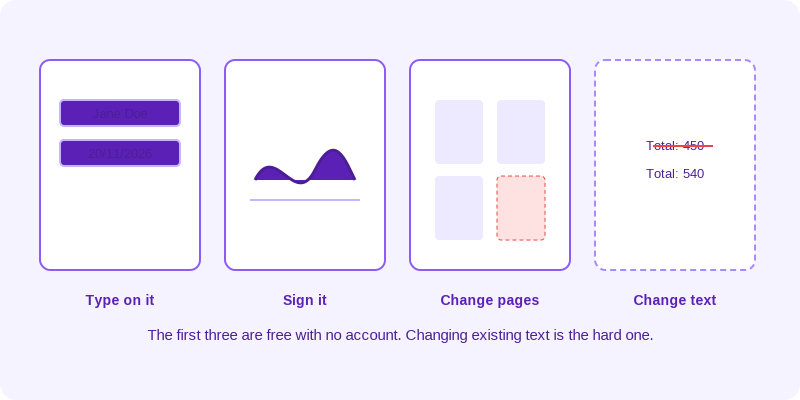
The way out is to notice that "edit a PDF" means four quite different jobs. Most of them don't need a full editor at all, and several can be done with software you already have, without signing up for anything.
The Four Jobs People Mean by "Edit a PDF"
- Add something on top. Type your name into a form, tick boxes, add a date, place a signature. The original page stays as it is, and you write over it.
- Fill a real form. Some PDFs have fillable fields built in. You click a box and type.
- Change the pages. Remove a page, rotate a sideways scan, reorder sections, join two files, add page numbers or a watermark.
- Change the existing text. Fix a typo in a paragraph, swap a price, edit a sentence in a contract.
Jobs 1 to 3 are easy and free. Job 4 is the hard one, and it's the only one where a paid editor sometimes earns its price.
Typing on a PDF and Signing It
Your web browser is probably the best free tool for this, and it needs no account and no upload.
Firefox has a built-in PDF editor. According to Mozilla's support article, you can add text in the colour and size you choose, draw, insert images, and add a signature by typing your name, drawing it with a mouse or stylus, or uploading a picture of your handwritten one. Then save the file.
Mozilla is clear about one limit that applies to every tool in this section: a signature added this way is an annotation, not a verified digital signature. It's fine for most everyday paperwork, such as permission slips, delivery notes or a tenancy form your landlord asked you to sign and return. If the other side asks for a certificate-based or "advanced" electronic signature, you need a proper e-signature service.
Microsoft Edge also opens PDFs in a built-in reader with drawing and highlighting tools, which is handy for marking up a document on Windows without installing anything.
On a Mac, Preview's Markup toolbar adds text boxes, shapes and signatures to any PDF.
A tip for typing on non-fillable forms: zoom in before you place each text box, so your text sits on the line instead of floating above it.
Filling In a Form
If the PDF has real form fields, it doesn't need an editor at all. Open it in Chrome, Edge, Firefox or Preview, click into the first box, type, and press Tab to jump to the next one. Save or download the file when you're finished.
If clicking does nothing, the form isn't fillable. It's just a picture of a form. Treat it as job 1 and type over it with the tools above.
Changing Pages: Remove, Rotate, Reorder, Combine
Page-level changes are where browser-based tools shine, and they don't need a sign-up either. Alventra's PDF tools run in your browser, so the file stays on your device:
- Remove PDF Pages: click the pages you don't want and download the rest.
- Rotate PDF: turn every page, or just the pages you list, by 90°, 180° or 270°.
- Split PDF: pull out a page range or save every page as its own file.
- Merge PDF: join several PDFs in the order you set.
- Add Page Numbers: number every page, top or bottom, left, centre or right.
- Watermark PDF: stamp text like "DRAFT" or "COPY" across each page, with your choice of size, angle and opacity.
To reorder pages, split the file into the pieces you need and merge them back in the new order. It's two steps, but it works on any device, including a phone.
Changing the Existing Text
This is the job free tools struggle with, and it helps to know why. A PDF doesn't store paragraphs like a Word file does. It stores instructions like "draw these letters at this exact position". Change a word and nothing reflows: the line doesn't re-wrap, and the next sentence doesn't move along.
Your options, best first:
- Edit the original. If the PDF came from a Word, Google Docs or Excel file, change it there and export a new PDF. This gives the cleanest result by far.
- Cover and retype small fixes. For a single wrong date or number, a white text box over the old value with the new value typed on top is often enough for informal documents. Don't do this to official or legal documents. If it needs to be correct, ask the sender for a corrected version.
- Open it in LibreOffice Draw. The free LibreOffice suite can open PDFs for editing, line by line. Expect fonts and spacing to shift on complex layouts, so check every page.
- Use a full editor. For heavy changes to a document you don't have the source for, a paid editor is the honest answer.
Which Free Option for Which Job
| Job | No-sign-up option | Notes |
|---|---|---|
| Type on a non-fillable form | Firefox, Mac Preview | Zoom in to line up text |
| Fill a fillable form | Any modern browser | Press Tab to move between fields |
| Add a simple signature | Firefox, Mac Preview | An annotation, not a verified e-signature |
| Remove, rotate or reorder pages | Alventra PDF tools | Runs in the browser, no upload |
| Join or split files | Alventra Merge PDF and Split PDF | Works on phones too |
| Change existing text | Edit the source file, or LibreOffice Draw | Layout may shift |
A Word About Privacy
The forms people edit most are the ones they'd least like to share: tax forms, rental applications, medical questionnaires, ID copies. Many online editors work by uploading the PDF to their servers, editing it there and sending it back. Tools that work locally, such as your browser's own PDF viewer or browser-based tools that process files on your device, avoid that step entirely.
Frequently Asked Questions
How can I type on a PDF for free?
Open the PDF in Firefox and use its add-text tool, or on a Mac open it in Preview and use the Markup toolbar. If the form has fillable fields, any modern browser lets you click into them and type.
Can I sign a PDF without creating an account?
Yes. Firefox's PDF viewer and Mac Preview can both add a typed, drawn or image signature without an account. These are annotations rather than verified digital signatures, so use an e-signature service if the recipient requires one.
Can I edit the text in a PDF for free?
For small changes, LibreOffice Draw can open and edit PDF text, though layouts may shift. The most reliable free method is to edit the original Word or Docs file and export a new PDF.
How do I remove a page from a PDF for free?
Use a page remover such as Alventra's Remove PDF Pages: open the PDF, click the pages you want to delete, and download the rest. The file is processed in your browser and isn't uploaded.