
 By Muhammad Irfan Liaqat
How to Extract Text from Images: A Practical OCR Guide
Learn how to pull text out of photos, screenshots, and scanned documents using free OCR tools. No software installation required.
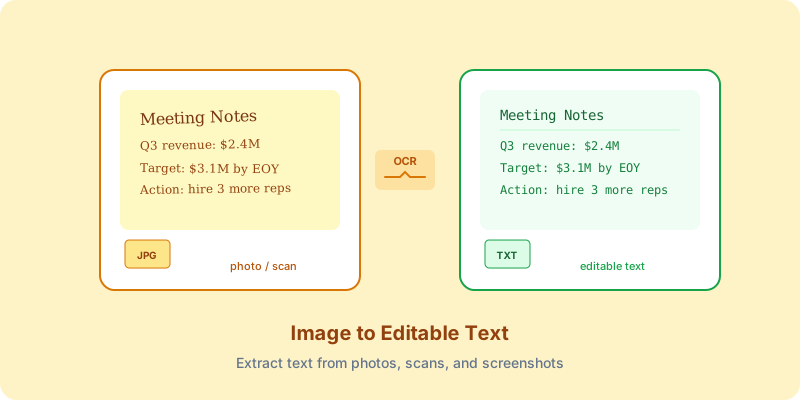
You've got a screenshot of a recipe. Or a photo of a whiteboard from a meeting. Or a scanned document that's just an image, not searchable text. You need the text, and retyping it manually feels like a punishment.
This is exactly what OCR is for.
What Is OCR?
OCR stands for Optical Character Recognition. It's technology that looks at an image, identifies the letters and words, and converts them into editable text.
Think of it as giving a computer the ability to read — looking at shapes on an image and figuring out that this particular arrangement of curves is the letter "S," this one is "a," and together they spell "Sarah."
When OCR Saves the Day
Scanned documents: Turning a PDF scan into text you can copy and search
Screenshots: Pulling error messages, code, or data out of screenshots
Photos of text: Receipts, business cards, whiteboards, book pages
Old documents: Digitizing printed documents that only exist on paper
Data extraction: Grabbing numbers from a table in an image
How to Extract Text from an Image
The fastest way? Use a browser-based OCR tool. No installation, no account creation.
1. Open our Image to Text (OCR) tool
2. Upload your image (JPG, PNG, or WebP)
3. Select the language of the text
4. Wait a few seconds for processing
5. Copy the extracted text
The entire process happens in your browser. Your image isn't uploaded to any server — it's processed locally using a technology called Tesseract.js, which is the same OCR engine used by Google and many other tech companies.
Tips for Better OCR Accuracy
OCR accuracy depends heavily on image quality. Here's how to get the best results:
Good lighting and contrast
Dark text on a light background works best. If you're photographing a document, make sure the lighting is even — no shadows or glare.
Straight alignment
Try to photograph or scan the document straight on. Skewed text is harder for OCR to recognize.
Sufficient resolution
Higher resolution means better accuracy. A blurry, low-resolution image will produce garbled text. If your image is too large, use our Image Resizer to find the right balance between size and clarity.
Clean images
Stains, wrinkles, and background patterns confuse OCR. If possible, scan documents on a clean scanner bed.
One language at a time
Most OCR tools work best when processing one language at a time. If your document mixes languages, you may get better results by specifying the primary language.
What OCR Can and Can't Do
Works well for:
• Printed text (books, documents, signs)
• Standard fonts
• Clear, well-lit images
• Most languages including English, Spanish, French, German, Chinese, Arabic
Struggles with:
• Handwriting (especially messy handwriting)
• Decorative or unusual fonts
• Very small text
• Low-contrast images
• Text overlaid on complex backgrounds
Real-World Accuracy
With a good-quality image of printed text, modern OCR typically achieves 95-99% accuracy. That means in a 1,000-word document, you might need to correct 10-50 characters. For a quick screenshot of text, it's usually near-perfect.
Handwritten text is a different story. Accuracy drops significantly, though it's improving. For handwriting, you'll likely need to proofread and correct the output.
Beyond Text Extraction
Once you've extracted your text, there are many things you can do with it:
• Search through previously unsearchable documents
• Translate text from photos taken abroad
• Digitize recipes from old cookbooks
• Archive meeting whiteboard notes
• Extract data from screenshots for spreadsheets
OCR might not be flashy, but it's one of those tools that saves you real time. The next time you're about to manually retype text from an image, remember — there's a better way.