
 By Muhammad Irfan Liaqat
How to Merge PDF Files for Free (Without Installing Anything)
A quick guide to combining multiple PDFs into one document. Learn the fastest, safest way to merge PDFs right in your browser.
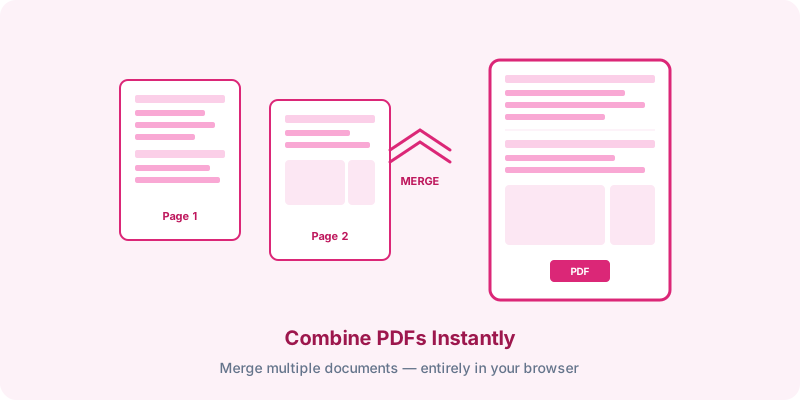
It's a scenario we've all faced: you need to send someone a single PDF, but your files are scattered across multiple documents. Maybe it's a contract with separate signature pages, a report with appendices in different files, or a college application with multiple supporting documents.
You need to merge them into one PDF. And you'd rather not install software or create an account somewhere just to do it.
The Privacy Problem with Online PDF Tools
Here's something most people don't think about: when you use a typical online PDF merger, you're uploading your files to someone else's server. That means:
• A company you've never heard of now has copies of your documents
• Your confidential contracts, financial statements, or personal documents sit on their servers
• You're trusting their privacy policy (which you didn't read)
• Some services even keep files for "up to 24 hours" for "quality purposes"
For a casual PDF merge, this might not matter. But for legal documents, financial records, or anything sensitive? It's a real concern.
The Browser-Based Alternative
What if the PDF merging happened entirely on your computer, with no files ever leaving your device?
That's exactly how our Merge PDF tool works. It uses a JavaScript library called pdf-lib that runs directly in your browser. Your PDFs are processed locally — nothing is uploaded anywhere.
How to Merge PDFs (Step by Step)
1. Open the tool: Go to Merge PDF
2. Add your files: Drag and drop your PDF files, or click to browse
3. Arrange the order: Use the up/down arrows to reorder pages
4. Remove if needed: Click the X to remove any file you added by mistake
5. Merge: Click the merge button
6. Download: Your combined PDF downloads automatically
The entire process takes about 10 seconds for most document sets.
Converting Images to PDF First
Sometimes the files you need to combine aren't all PDFs. You might have some images mixed in — scanned pages, photos of documents, or screenshots.
Use our Images to PDF converter first to turn those images into PDF pages, then merge everything together. You can choose page sizes (A4, Letter, or auto-fit) and arrange the images in the order you want.
Tips for Better Merged PDFs
File size: If your merged PDF is too large for email (most email providers cap attachments at 25 MB), consider compressing your images before converting them to PDF. Our Image Compressor can significantly reduce image file sizes.
Page orientation: Make sure all your documents are oriented correctly before merging. It's harder to fix rotation after the fact.
Order matters: Think about the reading order before you merge. Cover page first, then the main document, then appendices.
Keep originals: Always keep your original individual files. The merged PDF is a new file — it doesn't replace the originals.
When You Need More Than Merging
Merging is the most common PDF operation, but it's not the only one. Here are some other scenarios and how to handle them:
Need to split a PDF: Open it in your browser's PDF viewer and use the "Print to PDF" option with specific page ranges
Need to rotate pages: Most PDF viewers (including browser-based ones) have a rotation option
Need to reduce file size: Compress images before embedding them in PDFs
Need to add signatures: Look for dedicated e-signature tools
PDF management doesn't need to be complicated or expensive. For the most common task — combining files — a browser-based tool is all you need.