
 By
How to Create a WiFi QR Code for Free
Make a QR code that joins guests to your Wi-Fi in one scan. The exact text to enter, how to handle special characters and hidden networks, and printing tips.
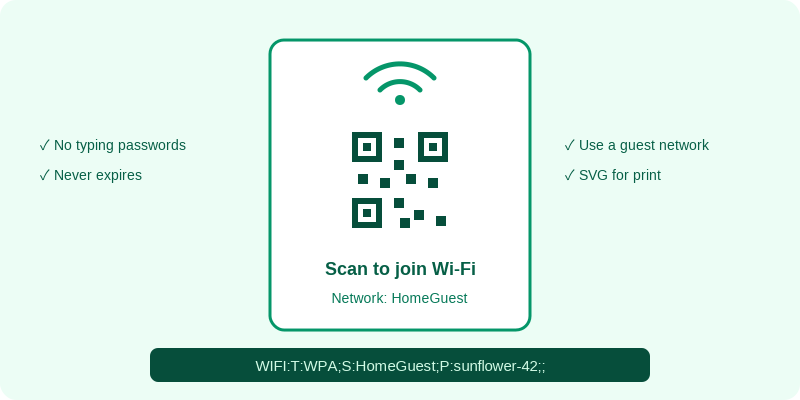
Guests ask for the Wi-Fi password, you read out twelve random characters, they type one wrong, and you do it again. A Wi-Fi QR code ends that. Guests point their phone camera at it, tap the "Join network" prompt, and they're online without typing anything.
You can make one for free in about a minute. You only need three things: the network name, the password, and the security type.
How to Make a WiFi QR Code
- Find your network details. The network name (SSID) and password are usually on a sticker on the router, unless you've changed them. The security type is in the router's settings. For almost every home network it's WPA2 or WPA3.
- Open the QR Code Generator and click the WiFi button. The box fills with a template:
WIFI:T:WPA;S:NetworkName;P:password;;- Replace NetworkName and password with your own, keeping everything else exactly as it is, including the two semicolons at the end. For a network called HomeGuest with the password sunflower-42:
WIFI:T:WPA;S:HomeGuest;P:sunflower-42;;- Scan it with your own phone while it's still on screen. The code updates as you type. If your phone offers to join HomeGuest, it works.
- Download it. PNG is fine for sharing in a message. SVG stays sharp at any size, so use it for anything you'll print.
The code is built in your browser and the generator never sends your password anywhere. It's a static code, so it has no expiry date, no scan limit and no account behind it. It keeps working until you change the network name or password.
What Each Part of the Code Means
The text follows a format first documented by the ZXing barcode project, which iPhone and Android cameras both understand:
| Part | Meaning | What to enter |
|---|---|---|
WIFI: | Tells the phone this is a network login | Leave as is |
T:WPA; | Security type | WPA for WPA, WPA2 and WPA3 networks, WEP for very old routers, nopass for open networks |
S:HomeGuest; | Network name (SSID) | Exactly as it appears in your phone's Wi-Fi list |
P:sunflower-42; | Password | Exactly as typed, including capitals |
H:true; | Hidden network (optional) | Add it only if your network doesn't broadcast its name |
; | End of the code | Leave as is |
Upper and lower case matter for both the name and the password. "HomeGuest" and "homeguest" are two different networks as far as your phone is concerned.
Open networks with no password
Set the type to nopass and leave the password empty:
WIFI:T:nopass;S:CafeFreeWiFi;;Hidden networks
If your router doesn't broadcast the network name, add H:true so the phone knows to look for it:
WIFI:T:WPA;S:HomeGuest;P:sunflower-42;H:true;;Passwords With Special Characters
Five characters have a special meaning in this format: backslash \, semicolon ;, comma ,, colon : and double quote ". If your network name or password contains any of them, put a backslash in front of each one.
| Real password | What to type in the code |
|---|---|
tea;time | tea\;time |
a:b,c | a\:b\,c |
back\slash | back\\slash |
So a café network called Joe's Café with the password tea;time becomes:
WIFI:T:WPA;S:Joe's Café;P:tea\;time;;The apostrophe and the accent don't need escaping. If the code scans but the phone says the password is wrong, a missing backslash is the most likely cause.
Who Can Scan It
The iPhone Camera app and the cameras on recent Android phones read Wi-Fi codes directly, with no extra app. Google Lens works on older Android phones.
Your phone can also make one for you. On Android 10 and later, open the network in Wi-Fi settings and tap Share. On an iPhone with iOS 18, open the Passwords app, tap Wi-Fi, choose the network and tap Show Network QR Code. Those codes are fine for showing on your screen. A generator is better when you want a code to print and stick on the wall.
A Wi-Fi QR Code Is Not a Secret
The password is stored in the code as plain text. Anyone who scans it with a QR reader app can see it, and anyone who photographs the code can join later.
- Use a guest network for codes you put on display. Most routers can run one, kept separate from the computers and devices on your main network.
- Don't post a photo of the code online or in a group chat you don't control.
- Change the guest password from time to time, for example when a lodger moves out, then print a new code. The Password Generator can make a new one. Choose a length of 12 or more and turn off symbols to avoid characters that need escaping.
Printing Tips
- Size: at least 3 cm (about 1.2 inches) across for a card on a table, larger for a sign across a room.
- Colours: dark code on a light background. Light-on-dark codes and low-contrast colours fail on some phones.
- Margin: keep a clear white border around the code. Don't let a frame or text touch it.
- Label it: write the network name under the code, so a guest whose camera won't read it can still connect manually.
- Test the printout, not just the screen version, with an iPhone and an Android phone if you can.
For more on how QR codes work and what else they can store, see What Is a QR Code?
Frequently Asked Questions
How do I create a QR code for my Wi-Fi?
Open a QR code generator, enter WIFI:T:WPA;S:YourNetwork;P:YourPassword;; with your own network name and password, scan the result to test it, and download it as PNG or SVG.
Does a Wi-Fi QR code expire?
No. A static Wi-Fi QR code contains the network name and password themselves, so it keeps working until you change either of them on the router.
Why does my Wi-Fi QR code say the password is wrong?
Check upper and lower case, and put a backslash before any semicolon, comma, colon, double quote or backslash in the password. Also check the network name matches your Wi-Fi list exactly.
Can someone see my Wi-Fi password from the QR code?
Yes. The password is stored as plain text, and any QR reader app shows it. Put a guest network on display codes, not your main network.
Do I need an app to scan a Wi-Fi QR code?
No. The iPhone Camera app and the cameras on recent Android phones join the network straight from the code. Google Lens works on older Android phones.