
 By
How to Combine PDF Files Into One on Any Device
Combine PDFs into one file on Windows, Mac, iPhone or Android, including photos mixed in with PDFs, then fix page order, rotation and numbering.
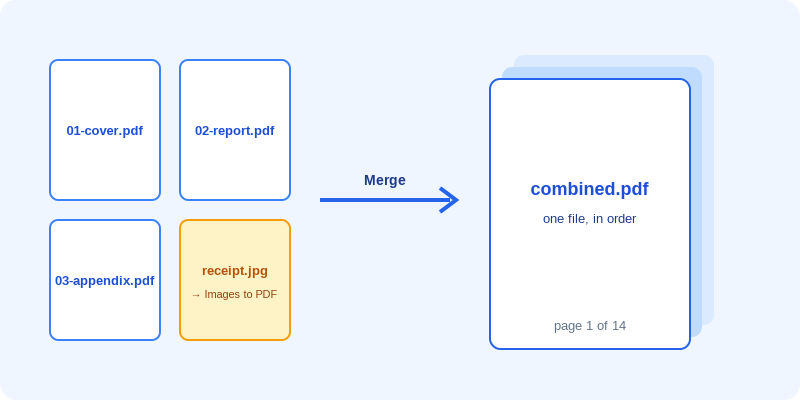
Joining PDFs sounds like a single click, and with the right tool it is. The part that takes time is everything around it: finding a method that works on the device in front of you, getting the pages in the right order, and dealing with the one photo of a receipt that isn't a PDF at all.
This guide covers each device, then the clean-up jobs that make a combined PDF look like one document instead of four files glued together.
Before You Combine: Plan the Order
Ten seconds of planning saves re-doing the merge. Decide the reading order (cover letter, main document, supporting pages, appendix) and rename the files so they sort that way: 01-cover.pdf, 02-report.pdf, 03-appendix.pdf. Most tools and file pickers list files alphabetically, so the numbers do the ordering for you.
Also check whether any of the pieces is a photo or a screenshot rather than a PDF. You'll need to turn it into a PDF first, which is covered below.
On Windows
Windows doesn't include a tool that joins PDFs. "Microsoft Print to PDF" can make a PDF from one document at a time, but it can't merge several existing PDFs into one. You have two good free routes:
- In the browser. Open Merge PDF in Edge, Chrome or Firefox, drop in your files, arrange them with the up and down arrows, and click merge. The files are processed on your computer and aren't uploaded, so this works for confidential documents too.
- A desktop app. If you merge PDFs every day, or need to work with no internet connection, PDFsam Basic is free and open source, runs on Windows, macOS and Linux, and processes everything locally.
On a Mac
macOS has two built-in ways, both described in Apple's own guides:
- From Finder. Select the files, Control-click them, and choose Quick Actions > Create PDF. Apple's steps are in Combine files into a PDF on Mac. This also works when some of the files are images.
- In Preview. Open the PDFs, choose View > Thumbnails in each, and drag thumbnails from one PDF's sidebar into the other's. You can drag a whole PDF from Finder into the sidebar too. Apple covers it in Combine PDFs in Preview.
Preview's way is better when you want to slot a single page into the middle of another document. Finder's way is quicker for whole files. After either one, scroll through the result to confirm the order before you send it.
On iPhone, iPad and Android
Phones are where people get stuck, because the PDFs are sitting in an email or a downloads folder and there's no obvious tool.
A browser tool is the simplest answer here. Open Merge PDF in Safari or Chrome, tap the upload area, and pick the files from Files, Downloads or Drive. The merge runs on the phone itself. Tap download, and the combined file lands in your downloads, ready to attach.
If you're on a phone with little free memory, very large scans can be slow. Merge in two batches, then merge the two results.
When Some Pages Are Photos
A receipt photo, a picture of a signed page, or a screenshot of a confirmation email can't go straight into a PDF merger. Convert it first:
- Open Images to PDF and add the images in the order you want them.
- Pick a page size. A4 or Letter makes them match the rest of your document. Auto-fit keeps each image at its own shape.
- Download the PDF, then add it to Merge PDF alongside your other files.
If the photos are large, run them through the Image Compressor first. A dozen full-resolution phone photos can turn an otherwise small PDF into a 40 MB file that no email will accept.
After You Combine: Make It Read as One Document
This is the part most guides skip, and it's what makes the result look professional.
- Fix sideways pages. Scans often come out rotated. Rotate PDF turns all pages or just the ones you pick by 90°, 180° or 270°.
- Remove what doesn't belong. Blank backs of double-sided scans, duplicate cover sheets, "this page intentionally left blank". Remove PDF Pages lets you click them away.
- Number the pages. Once several documents become one, their original page numbers no longer make sense. Add Page Numbers stamps fresh numbers on every page in the position you choose, so "see page 14" means page 14.
- Mark it if needed. For drafts or copies sent for reference, Watermark PDF adds text such as "COPY" across every page.
What Can Go Wrong
- A file refuses to merge. Password-protected PDFs can't be combined until the protection is removed by whoever has the password. Damaged files can fail too; opening and re-saving them in a PDF viewer sometimes fixes this.
- Form fields stop working. If two fillable forms use the same field names, the fields can clash once they're in one file. Fill and save each form first, or ask the sender for a flattened copy.
- The merged file is too big to send. Merging adds sizes together. If the result is over your email or upload limit, see our guide to shrinking a PDF that is too large to upload.
- Bookmarks look messy. Each original file keeps its own bookmarks, but they don't combine into one tidy outline. For most documents that doesn't matter. For long reports, a desktop app like PDFsam Basic gives you more control.
Frequently Asked Questions
How do I combine PDF files on Windows without Adobe?
Use a browser-based merger such as Alventra's Merge PDF, which runs in Edge or Chrome and doesn't upload your files, or install a free desktop app such as PDFsam Basic. Windows itself has no built-in PDF merge tool.
Can I combine a JPG and a PDF into one file?
Yes. Convert the JPG to a PDF page with an images-to-PDF tool first, then merge it with the other PDFs. On a Mac, Finder's Quick Actions > Create PDF can combine images and PDFs in one step.
Is there a limit to how many PDFs I can combine?
Alventra's Merge PDF has no fixed file limit. Because it runs on your device, the practical limit is your device's memory, so very large batches are faster in two or three rounds.
Does combining PDFs reduce quality?
No. A proper merger copies the original pages as they are, including text, fonts and images. Nothing is re-rendered or re-compressed.