
 By
Convert a Photo to Text on Your Phone or PC
Copy text from a photo or scan with the tools already on your iPhone, Android, Windows or Mac, or in your browser, then take photos that OCR reads right.
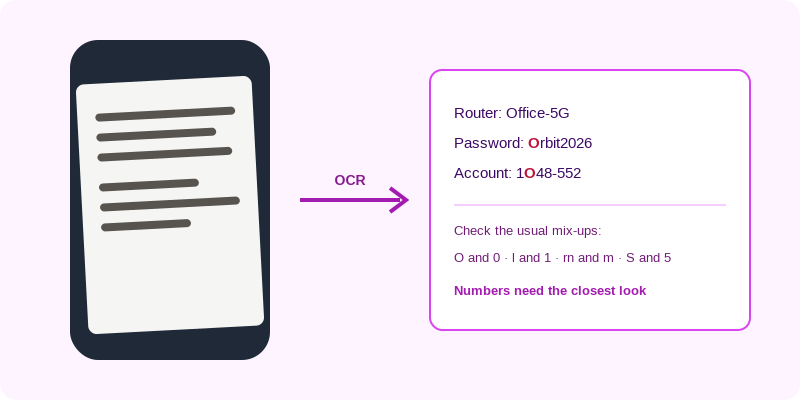
You've photographed a page of notes, a Wi-Fi password on the back of a router, a recipe from a library book or a paragraph from a printed contract. Now you want the words, not the picture, so you can paste, edit, search or translate them.
That's OCR (optical character recognition), and you very likely already have a decent version of it on your device. This guide shows the quickest route on each platform, when a browser tool is the better choice, and how to take photos that come out as clean text the first time.
The Fastest Option on Each Device
iPhone and iPad
Apple's Live Text recognises text in photos and in the camera view. Open the photo, touch and hold a word, then drag the grab points to select what you need and tap Copy. Apple's steps are in its Live Text guide.
Android
Google Lens, built into most Android phones through the camera, the Google app or Google Photos, can select text in an image and copy it. Open the photo in Lens, choose the text option, select the words and copy them.
Windows 11
The Snipping Tool does OCR. Take a snip of whatever is on screen (a photo, a scanned PDF, a frame of a video), then select Text actions to copy the text. Microsoft's Snipping Tool guide covers it, including how to copy all the text at once.
Mac
Recent versions of macOS include Live Text too, so you can select and copy text straight from images in Photos and Preview, the same way you'd select text in a document.
When a Browser OCR Tool Is the Better Choice
The built-in options are great for grabbing a line or two. A dedicated tool is better when:
- You want the whole page as editable text in a box you can review, correct and copy in one go.
- The text isn't in English. Alventra's Image to Text tool reads 11 languages: English, Arabic, Chinese (Simplified), French, German, Hindi, Japanese, Korean, Portuguese, Spanish and Urdu. Pick the language before you start, because the recognition model is different for each.
- You're on a work computer without the newer built-in features.
- The image is private. The tool runs Tesseract, an open-source OCR engine, inside your browser. The image stays on your device; the only download is the language data the first time you use a language.
One detail that helps with screenshots: Tesseract struggles when letters are only a few pixels tall. So when an image is under 1,000 pixels wide, the tool enlarges it two or three times before reading it. In our tests, a screenshot of 8-pixel text went from 44% of characters correct to 98% with that enlargement.
How to Take a Photo That OCR Can Read
Most OCR mistakes are decided when you press the shutter. Five habits make the biggest difference:
- Fill the frame with the text. Get close enough that the text runs nearly edge to edge. Background (a desk, your thumb, the next page) only gives the software more to misread.
- Hold the phone flat above the page. Shooting at an angle makes the far lines smaller and slanted. If you can't avoid an angle, crop and straighten afterwards.
- Light from the side, not above. Overhead light casts the shadow of your phone right across the text. Near a window, with the light coming from one side, is ideal. Turn the flash off on glossy paper.
- Tap to focus on the text and hold still for a moment. Slight blur that your eye forgives can turn "e" into "c" for software.
- Use your phone's document scanner if it has one. The scanner in iPhone's Notes app or in Google Drive on Android flattens the page, boosts the contrast and crops it for you, which is exactly what OCR wants.
Clean Up the Image Before You Run OCR
If the photo is already taken, a minute of preparation usually beats correcting the text afterwards:
- Crop to just the text with the Image Cropper. Remove headers, photos and margins you don't need.
- Do one column at a time. OCR reads straight across the page, so two columns can come out with their lines interleaved. Crop each column separately.
- Make tiny text bigger. If the letters are only a few pixels tall, enlarge the image with the Image Resizer first.
Check the Text for the Usual Mix-Ups
Even good OCR makes predictable mistakes. Skim the result for these:
| Often read as | Actually | Where it bites |
|---|---|---|
| O | 0 (zero) | Account numbers, postcodes |
| l or I | 1 | Phone numbers, prices |
| rn | m | Names and email addresses |
| S | 5 | Reference codes |
| Missing hyphen or joined words | Words split across lines | Pasted paragraphs |
Numbers deserve the most care. A wrong letter in a sentence is obvious to a reader. A wrong digit in an IBAN, an invoice total or a Wi-Fi password just doesn't work, and nothing tells you why.
What OCR Still Can't Do Well
- Handwriting. Tesseract is built for printed text. Neat block capitals sometimes work, but joined-up handwriting mostly doesn't. Phone tools like Live Text and Google Lens cope better with tidy handwriting, but check everything.
- Tables. You'll get the words in the right order, but not the grid. Expect to rebuild the columns in a spreadsheet.
- Text on busy backgrounds. Words over photos, patterns or gradients confuse every OCR engine. Crop tightly and hope for strong contrast.
- Scanned PDFs directly. The Image to Text tool works with images. For a scanned PDF, take a screenshot of each page (or use the Snipping Tool on Windows) and run OCR on that.
For more on how OCR works and the settings that affect accuracy, see our broader guide to extracting text from images with OCR.
Frequently Asked Questions
How do I convert a photo to text on my phone?
On iPhone, open the photo, touch and hold the text, and copy it with Live Text. On Android, open the photo in Google Lens and use the text option. For a full page or another language, use a browser OCR tool such as Alventra's Image to Text.
Can I convert a picture to text for free?
Yes. iPhone Live Text, Google Lens, the Windows 11 Snipping Tool and browser tools like Alventra's Image to Text all copy text from images for free.
Why is my OCR result full of mistakes?
Usually the photo: text too small, shot at an angle, in shadow or slightly blurred. Retake it flat and close in even light, crop to just the text, and enlarge small screenshots before running OCR.
Can OCR read handwriting?
Printed-text OCR engines like Tesseract handle handwriting poorly. Phone tools such as Live Text and Google Lens do better with neat handwriting, but always check the result.