
 By
Restaurant Menu QR Code: Free Setup That Lasts
Make a menu QR code that never expires: host the menu at a link you control, generate a free static code, and print it at a size every phone can scan.
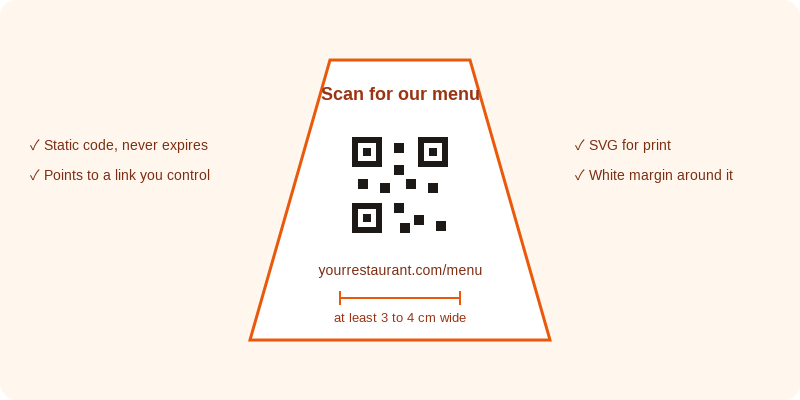
A menu QR code looks like a five-minute job: generate a code, print it, stick it on the tables. Most of the trouble shows up later. The code stops working because a free trial ended. Prices change and the code still opens last season's PDF. Or the code was printed so small that half the customers end up waving their phones over the table.
Here's how to set one up so it keeps working for years and costs nothing.
A QR Code Holds a Link, Not Your Menu
This is the most common misunderstanding, and it explains everything else. A QR code can only store a small amount of text. It can't contain a 3 MB PDF of your menu. What it stores is an address, and the phone opens whatever is at that address.
So making a menu QR code is really two jobs:
- Put the menu somewhere online, at a link that won't change.
- Turn that link into a QR code.
Get the first part right and you can change the menu as often as you like without ever reprinting the code.
Step 1: Give the Menu a Permanent Home
You have three realistic options:
- A page on your own website (for example yourrestaurant.com/menu). This is the best choice. It loads fast, reads well on a phone without pinching and zooming, and you can edit it any time.
- A PDF on your own website. Fine if your menu is already designed as a PDF. Upload it, then keep the same file name when you replace it, so the link stays the same.
- A shared file on a cloud drive. Workable if you have no website. Set sharing to "anyone with the link can view" and test it on a phone that isn't signed into your account. When the menu changes, upload the new version over the old file rather than adding a new file, so the link doesn't change.
If you use a PDF, keep it light. Many customers are on mobile data in a basement dining room, and a menu with full-resolution food photos can take a long time to appear. Our guide to shrinking a PDF covers how. If your menu exists only as photos of printed pages, Images to PDF turns them into a single file.
Step 2: Make a Static Code (and Skip the Subscription)
QR generators offer two kinds of code:
- Static: the link itself is written into the pattern. It works for as long as the link works. There is nothing to renew and nothing to expire.
- Dynamic: the pattern holds a short link that belongs to the generator company, which then forwards customers to your menu. That lets you change the destination and see scan statistics, but the code depends on that company's service. If the subscription lapses, the forwarding can stop, and every printed code in the restaurant stops with it.
If your menu lives at a link you control, you already have the main benefit of a dynamic code, because you can change what's at the link. A static code is enough.
To make one with the QR Code Generator:
- Choose the URL type and paste the full menu link, including https://.
- Keep black on white, or a dark colour on a light background. Avoid light codes on dark backgrounds, which some scanner apps struggle with.
- Pick a size. For print, download the SVG version: it's a vector file, so it stays perfectly sharp at any size your printer uses. Use the PNG for screens and social posts.
- Scan the result on your own phone before anything goes to print.
The code is generated in your browser, with your link written directly into it, so there's no middle service and nothing to expire.
Step 3: Print It at a Size Phones Can Read
A few practical rules:
- Go bigger than you think. A common rule of thumb in the print trade is that a code can be scanned from about ten times its own width. A customer at a table holds the phone 30 to 40 cm away, which points to a code at least 3 to 4 cm wide. On a door or window that people read from a metre or two away, make it 10 cm or more.
- Leave a white border. The QR standard asks for a clear margin around the code (the "quiet zone") four modules wide, a module being one of the small squares. Our SVG download includes that margin. The PNG has a narrower one, so if you place the PNG in a design, leave extra white space around it. Never let text, a border or a photo touch the pattern.
- Shorter links scan more easily. More text means more, smaller squares. A clean link like yourrestaurant.com/menu gives a coarser pattern that phones read faster, especially in dim light, than a long link full of tracking parameters.
- Watch the finish. Glossy lamination can reflect overhead lights straight into the camera. Matte lamination avoids this.
- Don't decorate the pattern itself. Our generator uses error correction level M, which, according to Denso Wave, the inventor of the QR code, can restore about 15% of the data if the code is damaged. That's there for smudges and scratches, not for logos pasted on top.
Step 4: Test Like a Customer
Before you print 40 table tents, print one and test it:
- Scan it with an iPhone and an Android phone, using the built-in camera app, not a scanner app.
- Try it at the table in evening lighting, not just at the counter in daylight.
- Check what opens: the right menu, readable without zooming, loading in a few seconds on mobile data.
- Ask someone who didn't set it up to try it, with no instructions.
Where to Put the Codes
- Table tents or stickers at each table, at the edge nearest the customer.
- The front door or window, so people can read the menu before they come in.
- Takeaway bags and receipts, for repeat orders.
Always add a line of text such as "Scan for our menu" and the short web address printed underneath. Some customers won't scan codes, some phones have cracked cameras, and the printed address is a fallback that costs nothing. Keep a few printed menus behind the counter for anyone who prefers paper.
Keep an Eye on Your Codes
Once a month, scan a few codes around the room. Links break when websites are redesigned, and there have been cases of fake QR stickers placed over genuine ones in public places to send people to look-alike payment pages. If a code ever looks like a sticker on top of your sticker, replace it.
Frequently Asked Questions
How do I make a QR code for a PDF menu for free?
Upload the PDF to your website or a cloud drive and copy its public link. Paste the link into a free QR code generator, download the code as SVG for printing, and test it on a phone that isn't signed into your account.
Do free QR codes expire?
Static QR codes don't expire, because the link is stored in the pattern itself. Codes that stop working are usually dynamic codes, which depend on the generator company's forwarding service and subscription.
Can I change my menu without reprinting the QR code?
Yes, if the code points to a link you control. Update the menu page, or replace the PDF at the same address, and the existing code shows the new menu.
What size should a menu QR code be?
For a table, at least 3 to 4 cm wide, with a clear white margin around it. For a door or window viewed from a metre or more away, 10 cm or larger.