
 By
Are Online PDF Tools Safe? How No-Upload Tools Work
What happens to your PDF when you upload it to an online tool, how browser-based tools process files without uploading them, and how to check a tool yourself.
You need to merge a bank statement with a payslip, or compress a scanned passport so a visa portal will accept it. You search for a free PDF tool, drop the file in, and it's done in seconds.
But where did the file go while it was being "done"?
For most online PDF tools, the answer is a server you know nothing about. That isn't automatically dangerous, but it's worth knowing before you hand over a document with your passport number on it. Here's what actually happens, how tools that don't upload your files work, and how to check any tool yourself in under a minute.
The Short Answer
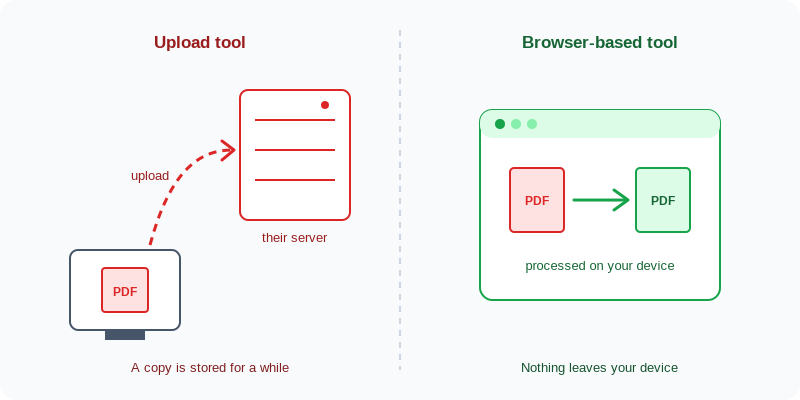
An online PDF tool is as safe as where it processes your file. There are two kinds:
- Upload tools send your PDF to their server, process it there, and send the result back. Your file sits on someone else's computer for a while.
- Browser-based tools send your browser the program instead. The file is processed on your own device and never leaves it.
Both kinds look identical on screen: a box to drop files in and a download button. The difference is invisible unless you check, which is why "is it safe?" is such a hard question to answer from the outside.
What Happens When You Upload a PDF
When a tool processes files on its server, your document typically:
- Travels over the internet to the company's server. Reputable tools use HTTPS, so it's encrypted on the way.
- Is stored on their server while it's processed, and usually for some time afterwards so you can download the result. Many services say they delete files after a set period, often an hour or a few hours.
- Is handled under their privacy policy and the laws of the country where the server is, which may not be your country.
Large, established PDF services generally do what their policies say. The risk is less about one dramatic hack and more about adding another copy of a sensitive document to a place you don't control, run by a company you may know nothing about. It also matters if the document isn't yours: client files, patient records or anything under a non-disclosure agreement may come with rules about which third parties can receive them. Check with whoever is responsible for the data before uploading it anywhere.
Documents to Think Twice About
For a restaurant menu or a public brochure, it doesn't matter much where the processing happens. Be more careful with:
- Passports, ID cards and driving licences
- Bank statements, payslips and tax returns
- Medical records and prescriptions
- Signed contracts and legal documents
- Anything containing someone else's personal data
How No-Upload PDF Tools Work
A browser-based tool works much like a desktop app that you download each time you open the page:
- Your browser downloads the tool's code. This is a JavaScript program, sometimes with WebAssembly for speed. It's the only thing that comes from the website.
- You pick a file. The browser gives the program access to that one file, in your device's memory. Web pages can't read your other files.
- The program edits the PDF on your device, using your computer's or phone's processor. A PDF is a structured file of pages, fonts and images, and a library such as the open-source pdf-lib can copy pages between documents, rotate them or add text without any server.
- The result is saved straight to your downloads. It's created in memory and handed to you as a file, never sent anywhere first.
All the PDF tools on this site work this way, from Merge PDF and Split PDF to Compress PDF, Rotate PDF and Watermark PDF.
The trade-off is that your device does the work. A very large PDF can be slow on an old phone, and some heavy jobs, such as converting a scanned PDF into an editable Word document, are hard to do well in a browser. That's partly why many services process files on servers.
How to Check a Tool Yourself
You don't have to take any website's word for it, including ours. Two simple tests:
Test 1: Watch the network (desktop browsers)
- Open the tool, then press F12 (or Cmd+Option+I on a Mac) to open the developer tools, and click the Network tab.
- Process a test PDF of a few megabytes.
- Look at the list of requests that appears while it works. An upload tool shows a request that sends a few megabytes (roughly the size of your file) to the site's server. A browser-based tool shows no request anywhere near that size.
Test 2: Go offline
- Open the tool and process one non-sensitive test file. Some tools only download parts of their code the first time you use them, so this makes sure the whole tool is loaded.
- Turn off Wi-Fi and mobile data, or switch on airplane mode.
- Process your file again without reloading the page.
If it still works with no connection, the processing is happening on your device, because there's nowhere for the file to go. If it shows an error or spins forever, it needs a server.
Also read the privacy policy
Look for phrases like "files are uploaded to our servers", "deleted after X hours" or "processed on our servers". A tool that keeps files on your device usually says so plainly, and its policy should match what you see in the tests.
Other Things on the Page
Being honest about this matters: a browser-based tool keeps your file on your device, but the page around it can still load other things. This site, like most free tool sites, loads Google Analytics and advertising scripts, which receive the usual visit information such as which page you opened. The tool code doesn't pass your file to them, and you can check that with the network test above.
Two more risks apply to every website, not just PDF tools:
- Browser extensions with permission to "read and change data on all websites" can see what any page shows. Install only extensions you trust.
- Lookalike buttons. Ads on free tool sites sometimes show their own "Download" or "Convert" buttons. The real download button belongs to the tool itself and appears after your file is processed. You should never need to install anything to merge or compress a PDF.
When to Skip Online Tools Altogether
For your most sensitive documents, or when you work with them every day, an offline app removes the question completely:
- Mac: Preview merges, reorders, rotates and deletes pages, and signs PDFs, all built in.
- Windows: Print to PDF (built in) turns a document into a PDF. For merging and splitting, free desktop apps such as PDFsam Basic work fully offline.
- Any device: our guide to PDF tools that work offline compares the options, and combining PDFs on any device covers the built-in methods on phones and computers.
A Quick Safety Checklist
- ☐Does the tool say where files are processed?
- ☐Does the network test show your file being sent anywhere?
- ☐Does it still work in airplane mode after one test run?
- ☐Is the document yours to share, or does it contain other people's data?
- ☐Did you use the tool's own download button, not an ad?
Frequently Asked Questions
Are online PDF tools safe to use?
Most well-known ones are safe for everyday documents, but many upload your file to their server. For sensitive files, use a tool that processes PDFs in your browser, or an offline app, so the document never leaves your device.
Is it safe to merge PDFs online?
Yes, if the merger works in your browser, because the files stay on your device. If it uploads them, your documents are stored on the service's server for a while, so read its policy before merging anything sensitive.
How can I tell if a PDF tool uploads my files?
Open your browser's developer tools, choose the Network tab, and process a test file. An upload shows as a request roughly the size of your file. You can also process a file with your internet turned off: if it still works, nothing was uploaded.
Do online PDF tools keep my files?
Upload-based tools usually keep files on their servers for a period, often an hour or a few hours, before deleting them. Browser-based tools never receive your file, so there's nothing for them to keep.
What is a client-side PDF tool?
A tool where the processing happens on your own device (the client) instead of on a server. The website sends your browser the program, and your browser edits the PDF locally.