
 By
Convert Image to PDF Online Without Signup
Turn JPG or PNG photos, scans and screenshots into one PDF in your browser, with no account and no upload. Page size, order, rotation and file size explained.
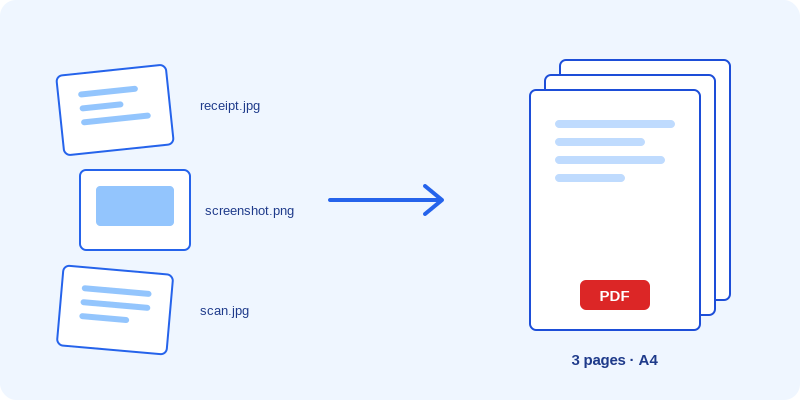
A landlord wants your payslips "as one PDF". A refund form wants the receipt as a PDF, not a photo. A teacher wants homework pages in a single file. All you have is a handful of photos on your phone.
Converting images to a PDF is a two-minute job. You don't need an app or an account, and the images don't have to leave your device.
How to Convert Images to PDF
- Open Images to PDF.
- Choose a page size. A4 or Letter if the PDF might be printed or submitted to a form. Fit if it will only be read on screen (more on this below).
- Add your images. Drag them onto the box or click it to pick files. JPG and PNG are supported. You can add more in several batches.
- Check the order. Each thumbnail shows its page number. Pages follow the order you added the images, so add them in reading order. Remove any you don't need with the ✕.
- Click Convert and then Download PDF. The file is saved as images.pdf, so rename it to something the recipient will recognise.
The conversion runs in your browser using the open-source pdf-lib library. The images are read from your device and the PDF is built on your device. Nothing is sent to a server, and there's no sign-up, watermark or daily limit.
A4, Letter or Fit: Which Page Size to Pick
A4 (210 × 297 mm) is the standard paper size almost everywhere outside North America. Letter (8.5 × 11 inches) is the standard in the US and Canada. With either one, each image is scaled to fill as much of the page as it can without being cropped or stretched, and centred. A landscape photo on a portrait page gets white space above and below.
Fit makes each page exactly the shape of its image, with no white space. It's tidy on screen, but the page size comes from the image's pixel count. A 4,000-pixel-wide phone photo becomes a page about 140 cm wide, and a printer or upload portal expecting A4 may shrink it or reject it. Use Fit for screenshots you'll share digitally, and A4 or Letter for everything else.
Getting the Order Right
The tool has no drag-to-reorder, so the order you add files is the order of the pages. Two easy ways to control it:
- Add one at a time in reading order. Slow for twenty pages, fine for five.
- Rename the files first (01-payslip-jan.jpg, 02-payslip-feb.jpg) and select them all at once. Most file pickers add files in name order, but check the page numbers on the thumbnails before converting.
If you get it wrong, remove the thumbnails that are out of place and add them again, or press Clear and start over.
Photos That Come Out Sideways
Phone cameras often save a portrait photo as a landscape image plus a small "rotate this" tag. Photo apps read the tag, so the picture looks upright on your phone. A PDF page doesn't use that tag, so the same photo can come out lying on its side.
You don't need to start again. Open the PDF in Rotate PDF, turn just the sideways pages by 90°, and download the corrected file.
Keeping the PDF Small Enough to Send
The tool puts each image into the PDF as it is, without re-compressing it. That keeps every photo at full quality, but it also means the PDF ends up roughly as big as all the images added together. Ten 4 MB phone photos make a PDF of about 40 MB, which is over Gmail's 25 MB attachment limit and most form upload limits.
Shrink the images before you convert them:
- Run the photos through the Image Compressor. It saves each one as a JPG at the quality you set and shows the new size. Around 70% is a good starting point for documents.
- Convert the compressed copies to PDF.
For a portal with a strict limit, our guide to shrinking a PDF that is too large to upload covers what to do next.
Tips for Photographing Documents
The PDF can only be as readable as the photos you put into it.
- Lay the page flat on a dark, plain surface so the edges stand out.
- Shoot from directly above, not at an angle, so the text isn't trapezoid-shaped.
- Use daylight and turn off the flash. Flash causes a bright glare spot, especially on glossy receipts.
- Fill the frame with the page, or crop the photo afterwards with the Image Cropper so there's no desk around the edges.
- Check that the small print is readable by zooming in on your phone before you leave the room.
What If My Images Aren't JPG or PNG?
- iPhone HEIC photos: when you pick photos from the Photos library in Safari, iOS normally hands the website a JPG copy. If a photo is still refused, set Settings › Camera › Formats to Most Compatible and the camera will save new photos as JPG.
- WebP, BMP or other formats: convert them to JPG or PNG with the Image Format Converter first.
- Images mixed with existing PDFs: convert the images, then combine everything with Merge PDF. Our guide to combining PDF files on any device walks through it.
Frequently Asked Questions
How do I convert an image to PDF without signing up?
Open the Images to PDF tool, pick A4, Letter or Fit, add your JPG or PNG images, then click Convert and Download PDF. The conversion runs in your browser, so there's no account and no upload.
Can I put multiple images into one PDF?
Yes. Every image you add becomes one page of the same PDF, in the order you added them. Check the page numbers on the thumbnails before you convert.
Why is my image-to-PDF file so large?
The images are placed into the PDF without re-compression, so the PDF is about the same size as all the images combined. Compress the images to JPG first, then convert.
Why is my photo sideways in the PDF?
Phones often store portrait photos sideways with a rotation tag that PDF pages ignore. Fix the affected pages with a Rotate PDF tool after converting.
Is it safe to convert images to PDF online?
It depends on the tool. Many converters upload your images to their server. A browser-based converter like this one builds the PDF on your own device, so the images never leave it.