
 By
Free Online Text Tools to Edit, Count and Clean Up Text
Fix text stuck in capitals, remove duplicate lines, compare two drafts, count words and make URL slugs, free in your browser with nothing uploaded.
Text you copy from somewhere else is rarely ready to use. A spreadsheet export has the same email address three times. A heading arrives in ALL CAPS. Someone sends back "the edited version" and you can't tell what they changed.
You could fix each of these by hand, line by line. Or you could paste the text into a tool built for that one job and be done in seconds. Here are the jobs that come up most often, which free tool handles each one, and where each tool stops.
Every tool below runs in your browser. The text you paste isn't uploaded or saved, so it's safe to use with customer lists, contracts and unpublished drafts. There's nothing to sign up for.
Quick Guide: Which Tool for Which Job
| You want to... | Use |
|---|---|
| Fix text stuck in capitals, or capitalise a title | Case Converter |
| Remove repeated lines from a list | Remove Duplicate Lines |
| See what changed between two versions | Text Diff Checker |
| Check a word or character limit | Word & Character Counter |
| Turn a title into a web address | Text to Slug |
| Turn spreadsheet rows into JSON | CSV to JSON |
| Preview Markdown or export it as HTML | Markdown Preview |
| Show HTML code as text on a web page | HTML Encode/Decode |
| Fill a layout with placeholder text | Lorem Ipsum Generator |
Fix Text Stuck in Capitals
Paste the text into the Case Converter and click the style you want. The result appears underneath with a copy button, and your original stays in the box, so you can try several styles.
- lowercase and UPPERCASE do exactly what they say.
- Sentence case lowercases everything, then capitalises the first letter of each sentence. It's the quickest fix for a paragraph someone typed with Caps Lock on.
- Title Case capitalises the first letter of every word.
- camelCase, PascalCase, snake_case and kebab-case are for code: variable names, file names and CSS classes.
Two things to check afterwards. Sentence case can't tell names from ordinary words, so "I met Sara in London" comes out as "I met sara in london", and you'll need to put the capitals back on names. Title Case capitalises every word, including small ones like "of" and "the", so "The Lord Of The Rings" needs a quick touch-up if your style guide keeps those lowercase.
Remove Duplicate Lines From a List
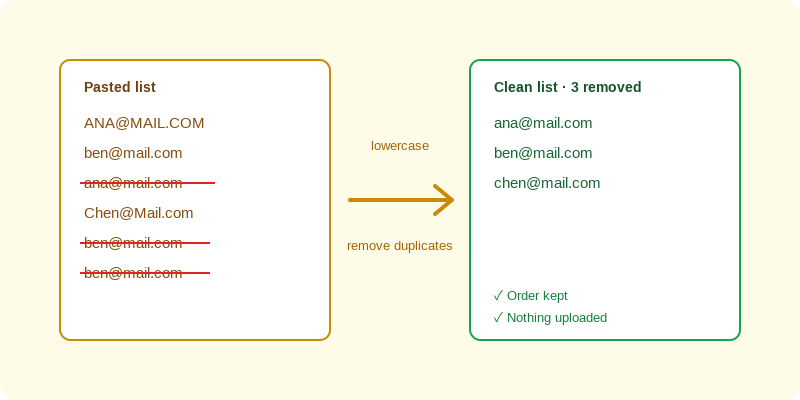
Paste a list with one item per line, such as emails, product codes or names, into Remove Duplicate Lines. It keeps the first time each line appears, removes the repeats, and tells you how many it removed. The order of the list doesn't change.
Two options decide what counts as a duplicate:
- Case sensitive (on by default): "Ana@mail.com" and "ana@mail.com" are treated as different. Turn it off for email lists, where capitals don't matter.
- Trim whitespace (on by default): a line with a stray space at the end still matches the same line without one. Leave it on for anything pasted from a spreadsheet.
Blank lines are kept as they are, so a list split into groups keeps its gaps.
This works on whole lines. If your list is separated by commas, put each item on its own line first, for example with your editor's find and replace.
See What Changed Between Two Versions
Paste the original into the left box of the Text Diff Checker and the new version into the right. Added lines are highlighted in green with a +, removed lines in red with a minus sign, and a summary counts each.
The comparison works line by line. If one word changes in a long paragraph, the tool shows the old paragraph as removed and the new one as added, and you spot the word by reading the two. For prose, it helps to put each sentence on its own line before comparing, so a change shows up in a single short line.
It's handy for contract redlines when you don't have the tracked-changes file, for checking what a client edited, and for comparing two configuration files.
Check a Word or Character Limit
The Word & Character Counter updates as you type, with words, characters with and without spaces, sentences, paragraphs, and reading and speaking time. Our guide to word counts for essays and articles explains what counts as a word and why the number can differ from Word or Google Docs.
Turn a Title Into a Web Address
Text to Slug turns "10 Tips for Café Owners!" into 10-tips-for-cafe-owners. It lowercases the text, strips accents, removes punctuation and joins the words with hyphens. You can use an underscore or a dot instead of a hyphen.
It only keeps the letters a to z and the digits 0 to 9, so a title written entirely in Arabic, Chinese or another non-Latin script comes out empty. For those, write an English or transliterated slug by hand. Why SEO-friendly URLs matter covers how to choose good words for one.
Turn Spreadsheet Rows Into JSON
Export a sheet as CSV, paste it into CSV to JSON, and the first row becomes the field names for every object. Untick "First row is header" if your file has no header row. It handles comma, semicolon, tab and pipe separators, which covers exports from European versions of Excel that use semicolons. It's the quick route when an app or API asks for JSON and your data lives in a spreadsheet. To check or tidy the result, paste it into the JSON Formatter.
Preview Markdown
Markdown is the plain-text format used for README files, many note apps and some blog platforms. Markdown Preview shows the formatted result next to what you type, and can export it as HTML to paste into a website or email builder.
Show HTML Code as Text
If you're writing a tutorial and want readers to see <p> instead of the browser turning it into a paragraph, HTML Encode/Decode turns the special characters into entities such as <p>. Decode does the reverse, which helps when text copied from a web page or email is full of & and ".
Fill a Layout With Placeholder Text
When a design needs text before the real copy exists, the Lorem Ipsum Generator makes between 1 and 100 paragraphs, sentences or words of it. Placeholder text makes it obvious which parts aren't final. Replace it before anything goes live, and don't leave it on published pages, where it looks unfinished to visitors and search engines.
Tips for Cleaning Up Pasted Text
- Paste as plain text first. Ctrl+Shift+V (Cmd+Shift+Option+V on a Mac) pastes without the source's fonts and colours in most browsers and editors.
- Work on a copy. Keep the original somewhere until you've checked the result.
- Clean in this order: remove duplicates, fix capitals, then count. Counting last gives you the final number.
- Check names and acronyms after any case change. No tool knows that "nasa" should be "NASA".
Frequently Asked Questions
Are online text tools safe for private text?
It depends on the tool. Some send your text to a server. The tools listed here process text in your browser, so it isn't uploaded or stored, and it's gone when you close the page.
How do I remove duplicate lines from a list?
Put each item on its own line, paste the list into a remove-duplicate-lines tool, and copy the result. Turn off case sensitivity for email addresses so capitals don't stop repeats from matching.
How do I convert text from all caps to normal?
Paste it into a case converter and choose Sentence case. Then put the capitals back on names and acronyms, which the tool can't recognise.
How can I compare two texts for differences?
Paste the original and the new version into a text diff checker. Added lines show in green and removed lines in red. Put each sentence on its own line to make small edits easier to spot.