
 By Muhammad Irfan Liaqat
Convert Images to WebP: A Complete Guide
WebP images are smaller and load faster. Learn how to convert PNG, JPG, and BMP files to WebP for free, with no software to install.
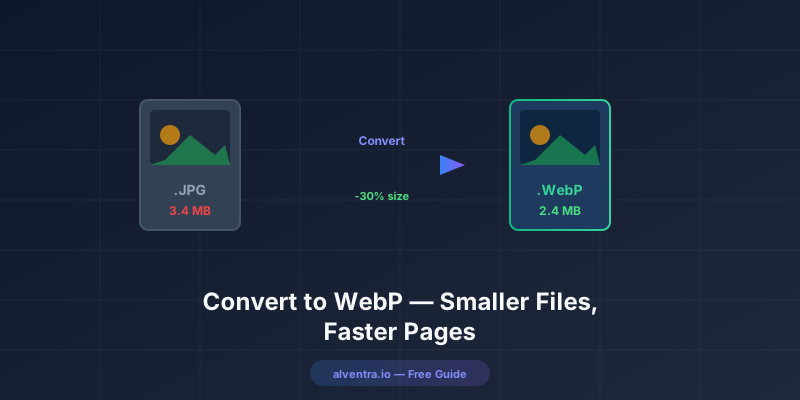
Run an image-heavy page through Google PageSpeed Insights and an image warning tends to sit near the top of the report. Older versions called it "Serve images in next-gen formats"; newer versions cover the same problem in an insight called Improve image delivery, which recommends modern formats like WebP.
Either way, the fix is mostly WebP. Switching to it keeps the same photos at the same visual quality, but in smaller files. Plenty of sites still serve only JPEG and PNG, usually because nobody pointed out the alternative.
This guide covers what WebP is, when it's the right choice, and four ways to convert your images, from a drag-and-drop browser tool to a one-line terminal command.
What Is WebP?
WebP is an image format developed by Google. Think of it as the successor to JPEG and PNG — it takes what's good about both formats and packages it into a smaller file.
Here are the numbers that matter, from Google's WebP documentation:
- Lossy WebP images are 25-34% smaller than comparable JPEG files at the same visual quality
- Lossless WebP images are 26% smaller than PNGs, and lossy WebP with transparency is typically about 3× smaller than PNG
- WebP supports both lossy and lossless compression
- WebP supports transparency (like PNG) and animation (like GIF)
In plain terms, your visitors see the same picture, but the file downloads faster. Across a page with twenty images, those savings add up to a noticeably quicker load.
Why WebP Matters for Your Website
If your website still serves only JPEG and PNG files, it's slower than it needs to be.
Google's own tools recommend it
Google PageSpeed Insights runs Google's Lighthouse audits on your page, and it specifically flags images served in older formats like JPEG and PNG when a modern format would be smaller. WebP is one of the formats it recommends. When Google's own performance tool points at something, it's usually worth fixing.
Page speed is part of how Google ranks pages
Google's documentation says that Core Web Vitals are used by its ranking systems, alongside many other signals. Largest Contentful Paint (LCP), how quickly the biggest visible element loads, is one of the three core metrics. On most pages that biggest element is an image, so smaller images directly improve LCP. Speed won't outrank better content on its own, but it's a signal you control.
Visitors leave slow sites
Greg Linden, who worked on Amazon's website, has written that when Amazon tested delaying its pages in 100-millisecond steps, even very small delays caused substantial and costly drops in revenue. Your site probably isn't Amazon, but the principle holds: people are impatient, and every extra second of loading gives them another reason to leave.
Bandwidth costs money
If you're hosting images on a CDN or cloud storage, you pay for bandwidth. Cutting image file sizes by 30% means cutting your bandwidth bill by a meaningful chunk. For sites with heavy traffic, this saves real money.
WebP Browser Support in 2026
The old argument against WebP was compatibility. "Safari doesn't support it." That excuse died years ago. As of 2026, WebP is supported by:
| Browser | WebP Support |
|---|---|
| Chrome | Since 2014 |
| Firefox | Since 2019 |
| Safari | Since 2020 (macOS Big Sur / iOS 14) |
| Edge | Since 2018 |
| Opera | Since 2014 |
| Samsung Internet | Since 2016 |
That covers over 97% of all web users globally, according to Can I Use. The remaining 3% are on outdated browsers that have bigger problems than image format support.
How to Convert Images to WebP
There are several ways to do this, from simple drag-and-drop tools to developer workflows. Which one fits depends on how many images you have and how much control you need.
Method 1: Browser-Based Converter (Easiest)
If you have a handful of images to convert, this is the fastest path:
- Open the Image Format Converter on Alventra.io
- Upload your JPG, PNG, or BMP images (you can add several at once)
- Select "WebP" as the output format
- Download your WebP files
The converter saves WebP at a fixed 92% quality, a safe high setting for photos, and it keeps PNG transparency. The entire process happens in your browser, and nothing gets uploaded to any server. It's the quickest route when you only have a few product photos or blog images. If you need to pick an exact quality level or use lossless WebP, use the command line (Method 3).
Method 2: Batch Conversion for Multiple Files
When you need to convert a whole folder of images, doing them one at a time isn't practical. This order of steps avoids most quality problems:
- Resize first. Use the Image Resizer to bring images down to the dimensions you'll actually display. Don't convert a 4000-pixel-wide photo to WebP if it'll be shown at 800 pixels.
- Convert to WebP. Drop the resized images into the converter together. For photos, its 92% quality is a good default. For graphics with text or sharp edges, lossless WebP from
cwebp -losslessusually gives cleaner results.
- Compare sizes. Check that the WebP version is actually smaller. In rare cases with very small or already-optimized images, the WebP file can be larger than the original.
Method 3: Command Line (For Developers)
Google provides a free command-line tool called cwebp (documentation):
cwebp -q 80 input.jpg -o output.webpFor batch conversion of an entire folder:
for file in *.jpg; do cwebp -q 80 "$file" -o "${file%.jpg}.webp"; doneThis is the practical option when you have hundreds of images to convert. The -q 80 flag sets the quality to 80% — adjust up for hero images, down for thumbnails.
Method 4: Build Tool Integration
If you're using a modern web framework (Next.js, Gatsby, Astro, etc.), you probably have built-in image optimization that serves WebP automatically. In Next.js, the <Image> component does this out of the box. Check your framework's documentation before manually converting.
What Quality Setting Should You Use?
This is the question everyone asks, and the answer depends on the type of image:
| Image Type | Recommended Quality | Why |
|---|---|---|
| Product photos | 80-85% | Keeps detail in the subject; background is less critical |
| Blog hero images | 75-80% | Viewed at a distance; slight softening is invisible |
| Thumbnails | 60-70% | Small display size hides quality differences |
| Screenshots with text | Lossless | Text artifacts are very noticeable |
| Logos and icons | Lossless | Sharp edges need pixel-perfect reproduction |
| Background textures | 70-75% | Subtle patterns are forgiving |
The easiest way to find the right setting: convert at 80%, open both images side by side, and zoom to 200%. If you can't see the difference, ship it.
WebP vs. JPEG vs. PNG: When to Use Each
WebP is great, but it's not the only format you should know about:
Use WebP when:
- You're serving images on a website
- File size matters (it always does for web)
- You need transparency with smaller files than PNG
- You want one format that handles photos and graphics well
Use JPEG when:
- You need maximum compatibility with legacy systems
- You're sharing photos via email where the recipient might not have WebP support
- You're printing (CMYK workflows don't support WebP)
Use PNG when:
- You need lossless quality for screenshots or technical diagrams
- You're working in image editing software that doesn't support WebP
- You need the image as a working file (WebP is better as a delivery format)
For most images on a website, WebP is the better choice: the files are smaller and every current browser displays them.
Common Mistakes When Switching to WebP
These are the traps that catch people most often:
Converting already-compressed images
If you take a JPEG that's been compressed to 60% quality and convert it to WebP, you're compressing already-compressed data. The quality degrades, and the file might not even get smaller. Always convert from the highest-quality source you have.
Forgetting about fallbacks
If you're writing HTML directly, use the <picture> element to provide a fallback:
<picture>
  <source srcset="photo.webp" type="image/webp">
  <img src="photo.jpg" alt="A product photo">
</picture>
This serves WebP to browsers that support it and falls back to JPEG for the rest. In 2026, the fallback is barely needed, but it's good practice.
Using lossless WebP for photographs
Lossless WebP for photos produces files that are barely smaller than PNG — sometimes even larger. Photos should almost always use lossy compression. Save lossless for screenshots, text, and graphics.
Not updating your CDN cache
After converting to WebP, make sure your CDN actually serves the new files. If the old cache isn't invalidated, visitors can keep getting the old JPEGs for days after the switch.
How to Measure Your Results
The only numbers that matter are your own, so measure before and after:
- Run your most-visited page through PageSpeed Insights and note the LCP time and the total image weight in the report.
- Convert that page's images to WebP and deploy them.
- Run the same test again on the same device type (mobile or desktop).
Going by Google's figures above, expect photos roughly 25-34% smaller than the JPEG originals, and graphics noticeably smaller than their PNG versions. If you also resized oversized images in the same pass, the savings will be larger, because most of the gain then comes from the resize.
Should You Convert Existing Images or Only New Ones?
My advice: both, but prioritize new content.
For new images going forward, make WebP your default output format. It takes no extra effort once it's part of your workflow.
For existing images, start with the pages that get the most traffic. Use Google Analytics or Search Console to find your top 20 pages, convert those images first, and measure the improvement. Then work through the rest as time allows.
Don't try to convert everything in one weekend. That's how mistakes happen. Methodical beats ambitious.
Quick Conversion Checklist
- ☐Start with the highest-quality source image you have
- ☐Resize to the actual display dimensions first
- ☐Convert to WebP at 80% quality for photos
- ☐Use lossless for screenshots and text-heavy graphics
- ☐Compare file sizes — WebP should be smaller
- ☐Check visual quality at 200% zoom
- ☐Use
<picture>tags for HTML fallback if needed - ☐Test on mobile — that's where speed matters most
Image format optimization isn't glamorous, and nobody will ever compliment you on using WebP. Visitors do notice when pages load quickly and product photos stay sharp, though, and that makes the switch worth the effort.